
How to install a Minecraft resource pack
A resource pack (texture pack) changes how blocks, items, the interface and sounds look and feel. No mods needed — resource packs work even in vanilla Minecraft.
With Why Launcher — in a minute
- Download and install Why Launcher.
- Open Моды, паки и скины (Mods, packs and skins) → Ресурспаки (Resource packs), search for a pack and press Установить (Install). The launcher takes the version for your game.
- Start the game, open Options → Resource Packs and move the pack into the right column.
The Why Launcher interface is in Russian, so button names are given in Russian with a translation.
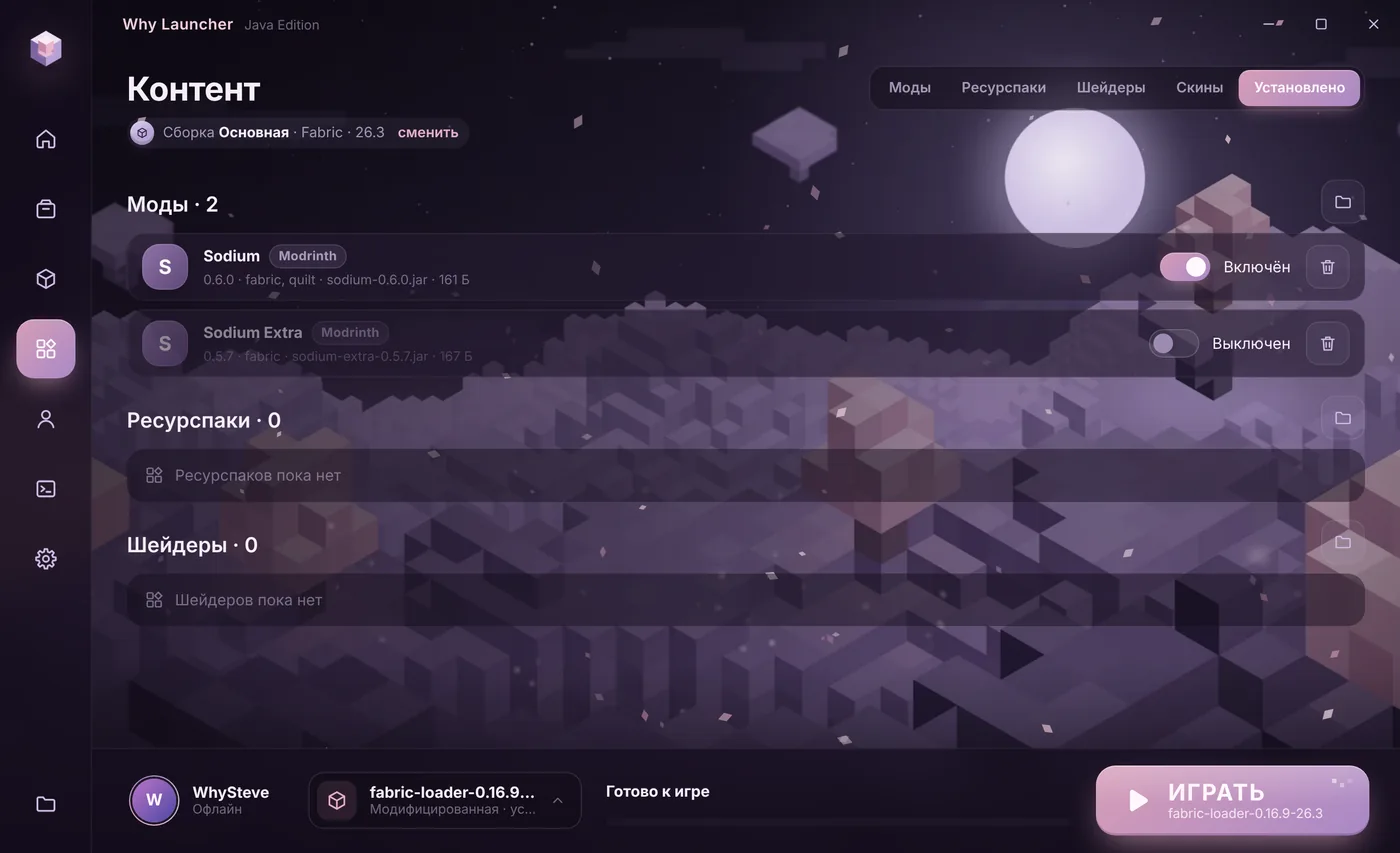
0 downloads from this site
Manually
- Download a resource pack — usually a
.zipfile — from Modrinth (Resource Packs) or CurseForge. Don’t unpack it. - Press Win + R, type
%APPDATA%\.minecraft\resourcepacksand press Enter. If the folder is missing, start the game once or create it yourself. - Put the pack file there.
- In game open Options → Resource Packs and move the pack to the right. Packs higher in the list win.
If something goes wrong
- “Made for an older/newer version” — usually you can still turn it on: the game just warns you. If textures break, find the pack version for your game.
- The pack isn’t in the list — the
pack.mcmetafile must sit right inside the zip. If it’s in a nested folder, the archive was packed wrong. - HD textures lag — 128×128 packs and above load the graphics card. Try a 32×32 or 64×64 version.
FAQ
Do resource packs need OptiFine?
Regular ones don’t. Some packs use connected textures or random mob models; on Fabric they need Continuity and Entity Texture Features, on Forge OptiFine works. The pack page always says so.
Resource packs vs shaders?
A resource pack changes pictures and sounds, shaders change lighting, shadows and water. You can use both.